How to Customize Control Center on Your iPhone
Swiping down from the top-right corner of your display opens one of the most useful menus on iOS. Knowing how to customize iPhone Control Center allows you to transform a basic grid of toggles into a personalized command hub. From launching instant screen recordings to controlling smart home devices and accessing third-party app tools, organizing…
Swiping down from the top-right corner of your display opens one of the most useful menus on iOS. Knowing how to customize iPhone Control Center allows you to transform a basic grid of toggles into a personalized command hub. From launching instant screen recordings to controlling smart home devices and accessing third-party app tools, organizing your Control Center saves time on everyday tasks.
1. How to Access and Add New Control Center Toggles
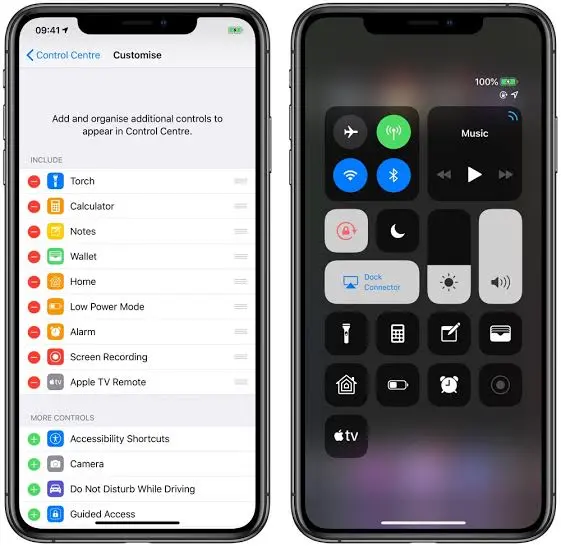
Setting up your custom layout begins directly inside the iOS Settings menu. Open Settings, scroll down to Control Center, and you will see two main organization sections: Included Controls (tools currently visible in your swipe-down panel) and More Controls (available system shortcuts waiting to be activated).
To add a new shortcut, simply tap the green plus (+) icon next to any feature in the More Controls list. You can instantly add controls for Flashlight, Low Power Mode, Timer, Screen Recording, Shazam Music Recognition, Calculator, and Wallet. If you want to declutter your screen, tap the red minus (-) icon next to any active tool and select Remove.
2. Rearranging and Grouping Your Essential Shortcuts
Having quick tools is great, but placing your most frequently used toggles within easy thumb reach makes single-handed navigation effortless. Inside the Control Center settings menu, locate the three horizontal stacked lines next to any listed control. Press and hold these lines to drag toggles up or down, reordering how they appear on your active overlay.
Top Recommended Control Center Shortcuts
| Shortcut Name | Primary Function | Best Real-World Use Case |
| Screen Recording | Captures active display video with audio | Sharing quick app walkthroughs and bug reports |
| Music Recognition (Shazam) | Identifies background audio in seconds | Instant song lookup without opening separate apps |
| Low Power Mode | Restricts background app refresh | Preserving battery percentage during travel |
| Apple TV Remote | Mimics physical Apple TV controls | Fast media control right from your lock screen |
3. Multi-Page Layouts and Third-Party App Integration
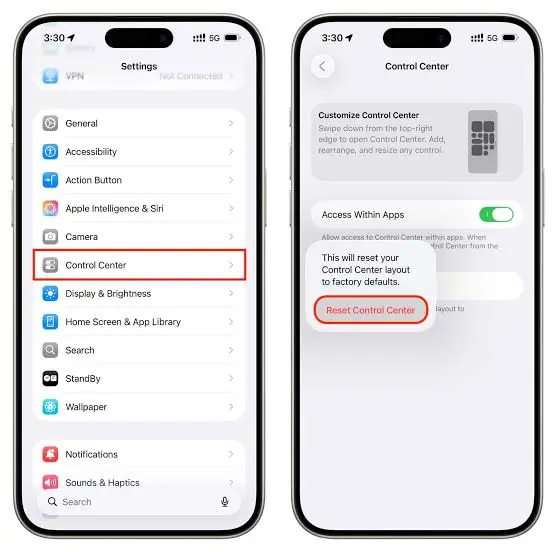
Modern iOS updates expand Control Center capabilities far beyond standard system toggles. You can now resize individual control widgets, arrange tools across dedicated pages—such as separate panels for Connectivity, Media Playback, and Home automation—and integrate controls built by third-party application developers.
Swiping vertically between Control Center pages lets you keep similar utilities grouped together neatly. For instance, you can keep Wi-Fi, AirDrop, and Cellular toggles on your primary page while placing smart lighting scenes and camera presets on secondary pages.
For official step-by-step documentation across all iOS versions, explore the official Apple Control Center support guide. App creators can also review control widget framework guidelines on the Apple Developer system portal.
4. Managing Lock Screen Access and Security Settings
While Control Center provides fast access to essential tools, you may want to restrict access when your iPhone is locked to protect your personal privacy. Restricting access prevents unauthorized users from turning on Airplane Mode or disabling Wi-Fi if your device is misplaced.
Open Settings, select Face ID & Passcode (or Touch ID & Passcode), enter your device passcode, and scroll down to the Allow Access When Locked section. Toggle off Control Center to ensure no one can access your shortcut panel without unlocking your device first.
Looking for more ways to speed up your daily mobile workflow? Read our complete guide on latest iPhone productivity tips and hidden iOS tricks.
Frequently Asked Questions
How do I open Control Center on an iPhone with Face ID?
Swipe down from the top-right edge of your screen. On iPhones with a physical Home button, swipe up from the bottom edge of the display instead.
Can I add third-party app shortcuts to the iPhone Control Center?
Yes, modern iOS versions support third-party control widgets, allowing compatible apps to place custom shortcuts directly inside your Control Center.
Conclusion
Taking a few minutes to customize iPhone Control Center streamlines how you interact with your phone every day. By putting your most critical toggles, media controls, and security options right at your fingertips, you eliminate extra steps and unlock a cleaner, faster iOS experience.